



1. What is an iCloud account?
An iCloud account is a free cloud service package from Apple. Users can register for iCloud using personal information and use that account to sync data between iOS devices such as iPhones, iPads, MacBooks, etc.
Learn more about iCloud at:
What is iCloud? Helpful iCloud features on iOS devices
-800x400.jpg "Tài khoản iCloud")
iCloud Account
2. Is it okay for iPhones to share an iCloud account? Should you?
– Reasons to share iCloud across two devices
Sharing an iCloud account across multiple devices is advisable if all devices belong to you. This allows for convenient data synchronization.
You can also let parents or grandparents share your iCloud account if they don’t need their own accounts. Or share with children for easier management, but be mindful of maintaining their privacy.
-800x450.jpg "Dùng chung tài khoản iCloud để đồng bộ dữ liệu")
Sharing an iCloud account to sync data
– Risks and implications of sharing iCloud
Because it’s the same iCloud account, information like calls, messages, photos, and videos on one device will also appear on the other. Privacy and security are compromised in this scenario.
In short, you should only share one iCloud account between two iPhones in specific circumstances to avoid security issues. If you still want to share, carefully consider the implications and ensure mutual agreement.
3. What can two iPhones sharing an iCloud account see?
When two iPhones share an iCloud account, the devices can see:
– Call logs.
– iMessages.
– Contacts (synced).
– Photos and videos (synced).
– Location data.
– Safari browsing history.
See more detailed information at:
Can shared iCloud accounts see Zalo calls, messages, and iMessages?
-800x450.jpg "Dùng chung iCloud có thể xem được tin nhắn iMessage")
Shared iCloud can view iMessages
Buy iPhone 14, iPhone 14 Plus, iPhone 14 Pro, and iPhone 14 Pro Max now with great deals and promotions.
During the September 13th iPhone launch event, Apple shared details about the Precision Finding feature for the Find My app and its commitment to respecting and protecting the privacy of its users. Learn more about the iPhone 15, iPhone 15 Plus, iPhone 15 Pro, and iPhone 15 Pro Max.
4. Best practices for securely sharing iCloud
– Turn off call display on other devices
Go to Settings > Scroll down and select Phone> Turn off Allow Calls on Other Devices.
-800x600.jpg "Tắt hiển thị cuộc gọi trên thiết bị khác")
Turn off call display on other devices
– Turn off iMessage syncing to iCloud
Go to Messages> Select Send & Receive> Check your phone number under Start new conversations from.
-800x600.jpg "Tắt tính năng đồng bộ tin nhắn iMessage")
Turn off iMessage syncing
After turning off iMessage, you can use SMS or chat apps like Messenger, Zalo, LINE, etc.
– Turn off contact syncing
Go to iCloud> Tap the slider next to Contacts to turn off syncing> Select Keep on My iPhone to save previously synced contacts.
-800x600.jpg "Tắt đồng bộ danh bạ")
Turn off contact syncing
– Turn off photo syncing to iCloud
Go to Settings> Scroll down and select Photos> Tap the slider to turn off iCloud Photos.
-800x600.jpg "Tắt đồng bộ ảnh lên iCloud")
Turn off photo syncing to iCloud
– Turn off Location Services
Go to Settings> Select Privacy> Under Location Services, toggle off Location Services.
-800x600.jpg "Tắt dịch vụ vị trí")
Turn off Location Services
– Turn off Safari syncing
Go to iCloud> Tap the slider next to Safari to turn off syncing> Select Keep on My iPhone to save previously synced history.
-800x600.jpg "Tắt đồng bộ Safari")
Turn off Safari syncing
5. How many devices can use one iCloud account?
One iCloud account can support up to 10 devices; therefore, you can share iCloud between 2-3 iPhones and 2-3 iPads simultaneously.
6. How to check who is sharing your iCloud and how many devices are connected
Go to the iCloud website HERE> Go to Account Settings (Account Settings)> Under My Devices (MyDevices), you will see a list of devices connected to the same iCloud.
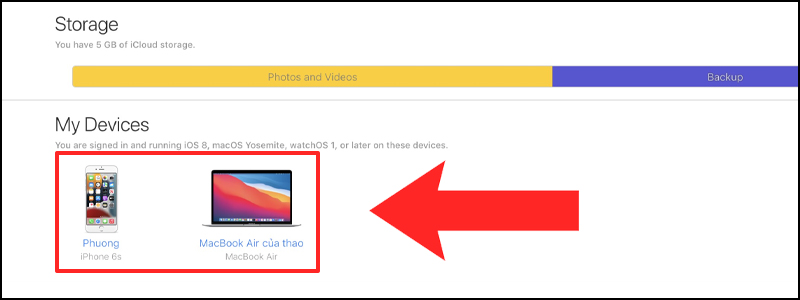
View the device list under Devices
7. How to remove a shared iCloud account
Method 1: Go to the iCloud website HERE> Select Account Settings (Account Settings)> Under My Devices (My Devices), select the device you want to remove> Tap the X next to the device.
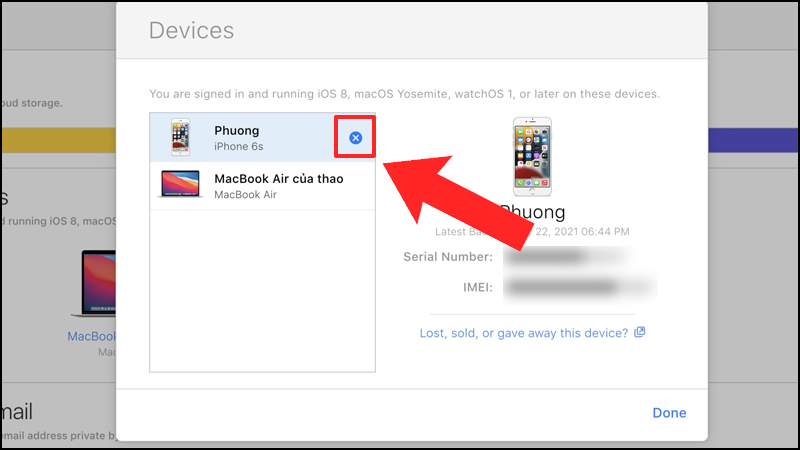
Tap the X to remove the device
Method 2: Create a new iCloud account to use.
See instructions for creating an iCloud account: How to create an iCloud account
8. How to handle call syncing issues when sharing iCloud
– Step 1: Go to iCloud> Tap the slider next to Contacts to turn off syncing.
– Step 2: Go to Settings>General>AirPlay & Handoff> Tap the slider next to Handoff.
-800x449.jpg "Tắt Handoff")
Turn off Handoff
This article answered the question of whether two iPhones can share one iCloud account and provided related instructions. Thank you for reading!
