


Many MacBook users find the macOS operating system unfamiliar and want to use Windows, but don’t want to switch to a different laptop. Let’s explore how to easily install Windows 10 or 11 on your MacBook using Boot Camp via USB, as explained below!
1. What is Boot Camp?
Boot Camp is a platform provided by Apple to help users install the Windows operating system on their MacBooks and run it concurrently with macOS. Using Boot Camp, you can easily switch between the two operating systems.

Boot Camp, provided by Apple, allows users to install Windows on their MacBooks.
2. Which Mac computers can install Windows via Boot Camp?
Currently, MacBook, iMac, and Mac mini models running Intel chips can install Windows via Boot Camp. MacBook M1 models cannot install Windows because the Boot Camp driver does not yet support the ARM architecture.

All MacBook models except the M1 series can install Windows via Boot Camp.
3. What to prepare before installing Windows 10, 11 on a MacBook?
Before installing Windows 10 or 11 on your MacBook, you need to prepare the following:
– An USB drive of 8GB or more, formatted as MS-DOS (FAT) or FAT32.
– At least 64GB of free internal storage on your MacBook.

Your MacBook needs at least 64GB of free internal storage to install Windows.
– A previous backup of your MacBook to avoid data loss in case of problems during installation.
See instructions on backing up data on your MacBook here:
- [Video] How to back up data on a Mac using Time Machine and iCloud
4. How to install Windows 10, 11 via Boot Camp
Step 1: Download Windows 10 HERE (it’s recommended to choose Windows 10 Home or Pro).

You can select the Windows version under “Select edition”.
Step 2: Go to Applications > Utilities folder > Select Boot Camp Assistant > Continue.

Access the Boot Camp Assistant.
Step 3: In the ISO image section, click Choose > Navigate to the location where you downloaded the ISO file to install Windows.
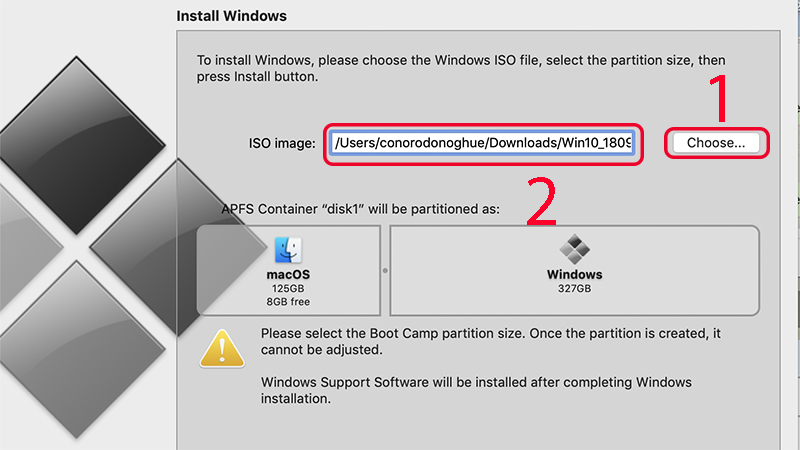
Navigate to the location of the downloaded ISO file in the ISO image section to install Windows.
Step 4: Plug in the USB drive so Boot Camp can automatically download Windows drivers for your MacBook during installation.

Plug in your USB drive to install Windows on your Mac.
Step 5: In the APFS Container “disk1” will be partitioned as section, select the storage space for your Windows operating system. The default storage is 40GB; you can adjust this by dragging the circle (avoid letting Windows take up more than half of the storage) > Click Install.
Step 6: Wait for the familiar Windows installation screen to appear > Select your language and keyboard > Click Next.

Set up the information as you would when installing Windows on other laptops.
Step 7: Click Skip in the product key entry section > In the partition section, select Boot Camp > Click Next.
Step 8: Continue with the initial setup steps. Once complete, Windows will be successfully installed on your MacBook.

Once complete, your MacBook will be able to run the Windows operating system.
Check out: A compilation of all discount codes and promotional codes at TGDĐ
>> Buy MacBook Pro M3, MacBook Pro M3 Pro, MacBook Pro M3 Max at low prices, officially.
5. How to switch between the two operating systems
To switch between operating systems, press and hold the Option key as soon as you start your MacBook. Then wait until the machine displays the two partitions, Macintosh HD and Boot Camp, and select the desired operating system: Macintosh HD (to use macOS) or Boot Camp (to use Windows).

You can choose your operating system after starting your Mac.
6. How to remove Windows from your Mac
To remove Windows from your Mac, access Boot Camp on macOS > Select the Windows partition > Click Restore.
Note: This will erase all data on Windows, so back up any important data before proceeding.
See also:
- How to check and view the complete, detailed configuration of your MacBook
- How to easily reset and restore your MacBook Air
- How to quickly and easily show or hide hidden files on your MacBook
This is a detailed guide on how to install Windows on your MacBook using Boot Camp. We hope this was helpful and we’ll see you in our next article!
