


While using an iPhone, users may encounter an issue where the phone does not recognize accessories, specifically failing to connect to a charging cable and headphones. You can refer to the methods below to quickly resolve these issues.
Causes of the “Accessory May Not Be Supported” Error:
– Accessory Issues: Faulty charger, damaged charging cable, broken headphones, incompatible accessories,…
– Phone Issues: Dust accumulation in the charging port and connector obstructing the connection between the device and accessory
– Software Conflicts: Errors in pre-installed software leading to the “accessory not supported” error
Below are some simple solutions for accessory errors on iPhones. Let’s take a look.
1. Check connection accessories
Before connecting accessories to your iPhone, check each accessory for damage, looseness, or breaks.
Additionally, try connecting different accessories or those from different manufacturers to find the best solution.
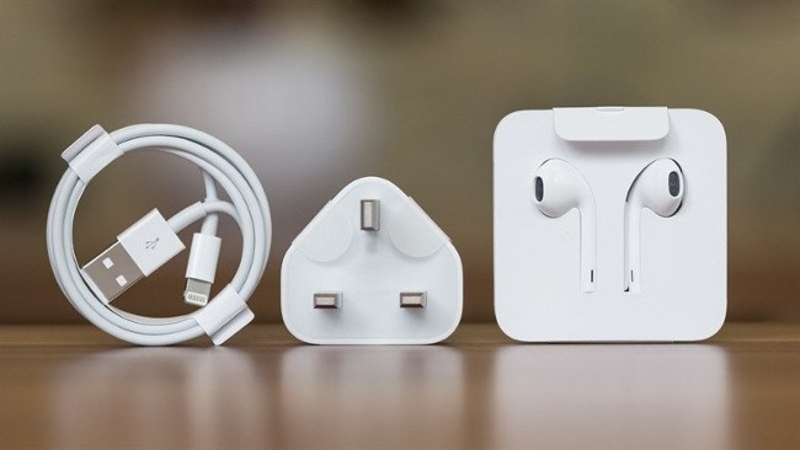
Check connection accessories
2. Clean the phone’s connection port
Prolonged phone use can lead to dust accumulation, preventing charging or connection to the iPhone’s ports. Therefore, clean the charging port, headphone jack, and other connection ports.
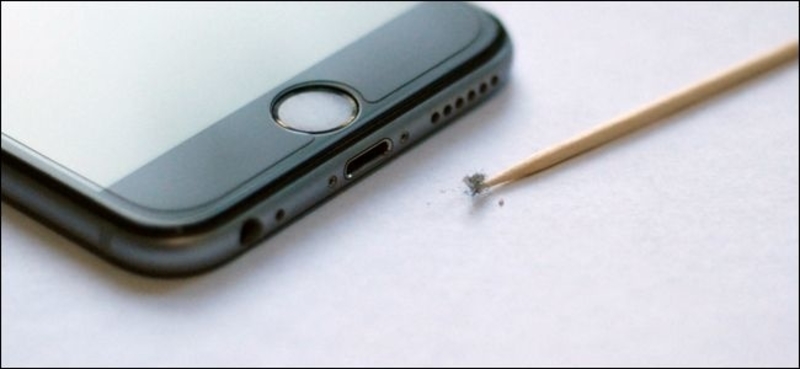
Clean phone connection port
3. Remove unnecessary applications
Remove unused applications or applications with similar functions to avoid conflicts, free up device memory, extend usage time between charges, and improve phone speed.

Remove unnecessary apps
4. Restart the phone
New iPhone 14 series pricing: iPhone 14, iPhone 14 Plus, iPhone 14 Pro, iPhone 14 Pro Max iPhone 14 Pro Max offers up to $4.5 million in discounts.
The camera is a breakthrough on the new generation of iPhones launched by Apple on September 13th. With a 48MP main camera and night mode, Smart HDR,… sharpness helps create vivid works of art. See more information about iPhone 15, iPhone 15 Plus and iPhone 15 Pro, iPhone 15 Pro Max.
To restart your iPhone:
Step 1: Press and hold the Power button on your device for a few seconds until the screen appears as shown below.

Press and hold the Power button
Step 2: Swipe the slider to power off and restart the phone.
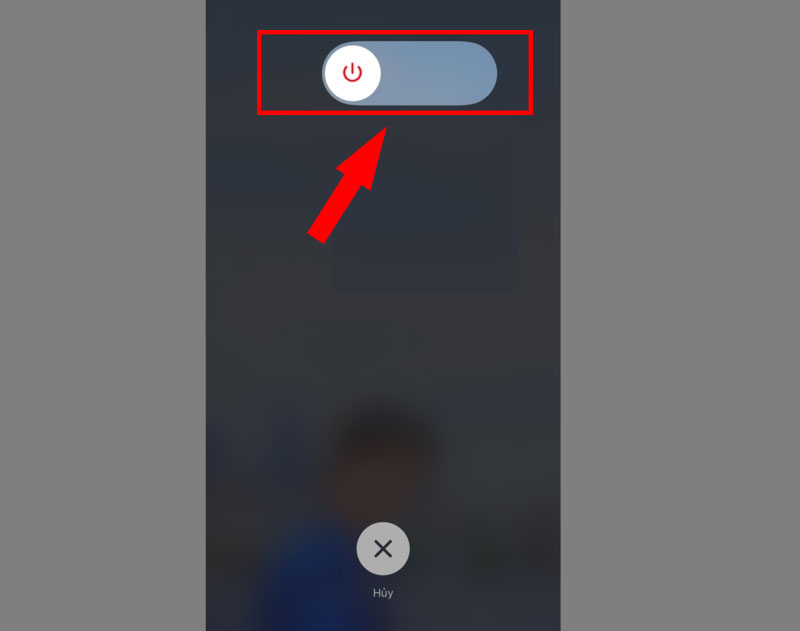
Swipe the slider to power off
Note: Devices that have been jailbroken and have Cydia installed should not follow the method below to avoid freezing.
5. Restore factory settings on the phone
If the issue persists after restarting, try restoring factory settings as shown below.
Step 1: Go to Settings > Select General.
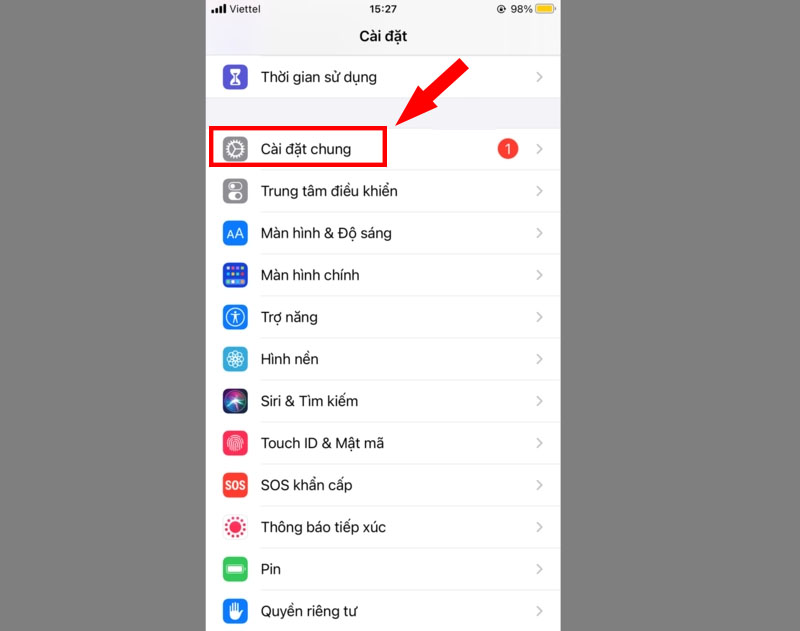
Go to General Settings
Step 2: Select Transfer or Reset iPhone.
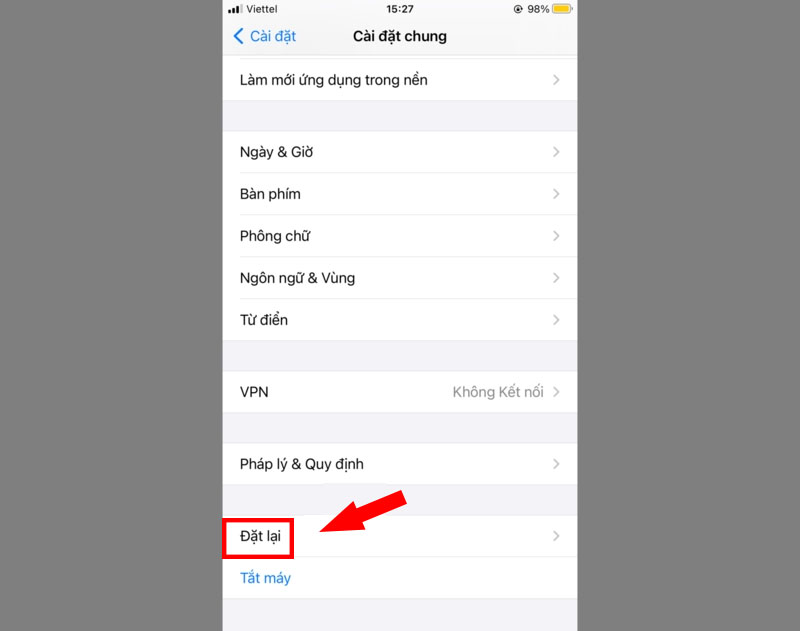
Select Transfer or Reset iPhone
Step 3: Tap on Reset and then choose “Erase All Content and Settings”.
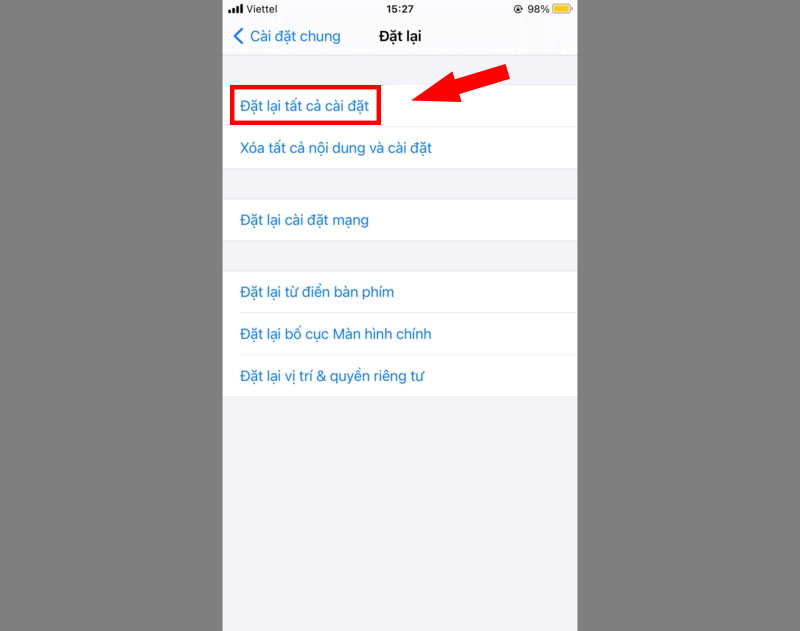
Select Erase All Content and Settings
Step 4: Enter your passcode (if any) and select Erase All Content and Settings to confirm.
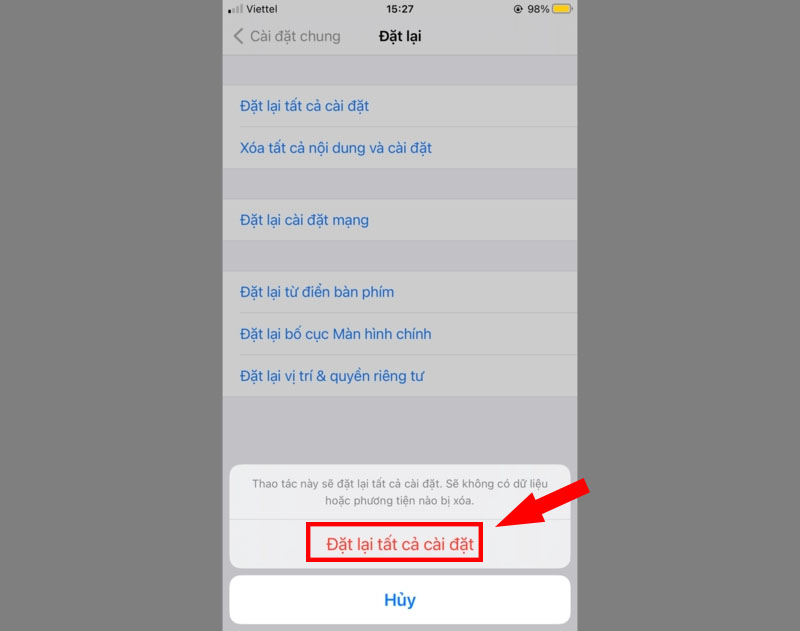
Enter passcode
See Also:
- 18 ways to fix iPhone draining overnight
- What to do if you forget your iPhone or iPad restriction passcode?
- Why can’t my iPhone send messages – Causes and solutions
6. Frequently Asked Questions
– When charging the iPhone, the phone reports that the accessory is not supported?
This could be due to a faulty charger or the use of a low-quality charger. If the phone reports this, use an original charger.
– Using EarPods for a while, the accessory is not supported?
For this error, go to Settings > General > Transfer or Reset iPhone > Reset > Reset All Settings > Then restart your device. This will reset your device settings and will not delete data.
– Charging the iPad shows that the accessory may not be supported even though the original charger is used?
Try restarting your device, or check if your device has been updated to the latest software. If not, update the software.
– The iPhone charges when powered off, but when powered on, it displays that this accessory is not supported?
Clean the charging cable and the phone’s charging port. If the problem persists, please take some time to visit the nearest Thegioididong.com store for a direct product check.
The above article discusses the causes and simple solutions for when your iPhone does not support accessories. Thank you for following along and see you in future articles.
